> ## Documentation Index
> Fetch the complete documentation index at: https://docs.rodyne.xyz/llms.txt
> Use this file to discover all available pages before exploring further.
# Troubleshooting
> Diagnose common setup, identity, role, ticket, and provider-job problems.
Start with the affected record, then check **Bot Management → Activity** and the relevant integration health page.
## Setup and connection
Confirm the signed-in Discord account can manage the guild. Retry the managed-server lookup. If the account recently gained access, sign out and back in before retrying.
Confirm Rodyne joined the exact selected guild. Check that the invitation was not authorized for another server, then retry the membership check.
Confirm it belongs to an individual account, not the group; includes `group:read` and `group:write`; targets the correct group; and its owner can administer that group.
Confirm HTTP requests are enabled, the server script is published, the credential uses the universe ID, the hooks origin has no trailing slash, and the credential is not revoked.
## Verification and roles
Ask the member to complete first-party Cnect verification. Do not select one provider result manually unless the ownership conflict is reviewed through the supported flow.
Check verified identity, group membership lookup, Group ID and Rank ID, protection, shared-role behavior, bot hierarchy, and the job detail.
Check for duplicate order numbers, a protected adjacent mapping, stale current rank, missing permission, or an active request for the mapping.
## Tickets and announcements
Review every type, not only the selected one. Confirm panel channel, private category, support roles, questions, button count, emoji availability, and bot permissions.
Inspect the actual channel/message first. If it exists, do not retry the provider write. Use repair only after the live state is understood.
Keep the worker online for the history sweep. A message deleted during downtime cannot be reconstructed, and expired attachment URLs cannot be recovered by Rodyne.
## Rank and moderation jobs
Check required approval count, approver access, expiry, entitlement, and whether the requester attempted to self-approve.
Treat this as partial completion. Do not repeat the Roblox change. Inspect and repair only the Discord synchronization target.
The moderation can still be complete. Closed or blocked DMs are recorded as undelivered; an interrupted result can be unknown to prevent duplicates.
## What to include in a support request
Provide the workspace name, affected record/reference, approximate time and timezone, current outcome label, and the page where it occurred. Never include passwords, tokens, API keys, connector secrets, or private evidence unless a trusted support process explicitly requests an approved secure transfer.
## Guided walkthrough
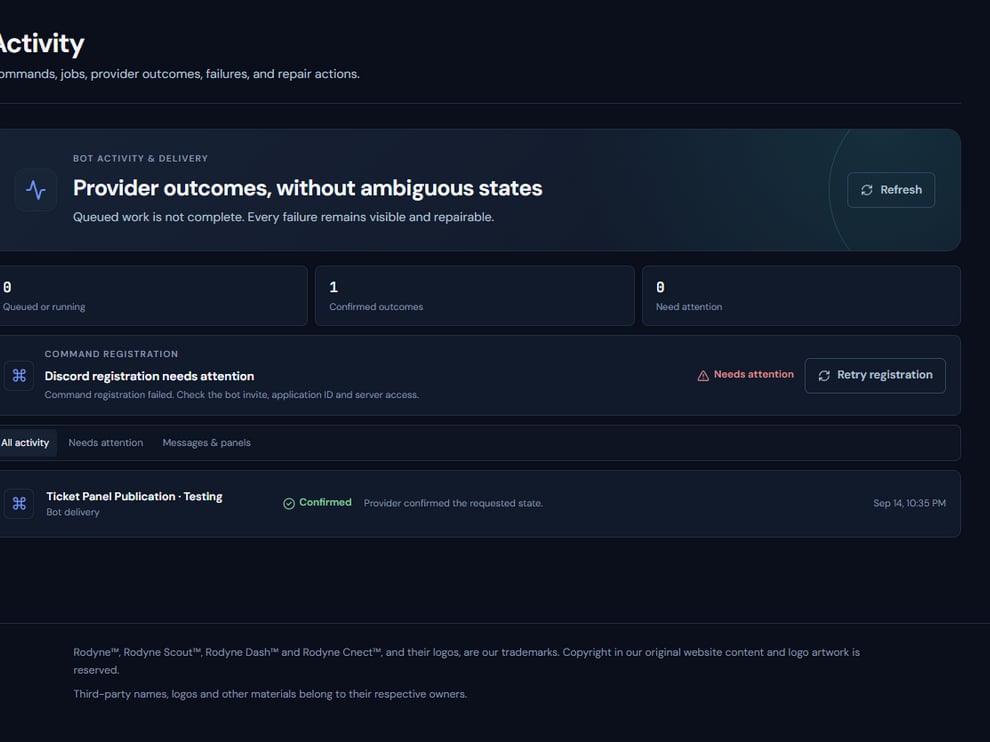 The screenshot above is from the live Rodyne product. Use it to orient yourself, but rely on the current record state and live provider checks when operating the workspace.
## Operating procedure
Capture the workspace, record ID, actor, and approximate time.
Use Activity or the record link to find every provider target.
Distinguish validation failure, safe failure, partial completion, and uncertainty.
Inspect the Discord, Roblox, or Studio object before any retry.
Use the offered action for only the failed or unconfirmed target.
## Acceptance checks
| Check | Ready when | If it is not ready |
| ------- | -------------------------------------- | ----------------------------------------- |
| Context | Workspace and record are exact | Return to the source record |
| State | Every provider target is accounted for | Wait or investigate the unresolved target |
| Retry | Live state proves retry is safe | Escalate without retrying |
## Failure recovery
If no safe repair is offered, preserve the job ID and current provider state. Include timestamps and outcome codes in support requests, but never include credentials or restricted evidence in an unapproved channel.
## Continue the workflow
The screenshot above is from the live Rodyne product. Use it to orient yourself, but rely on the current record state and live provider checks when operating the workspace.
## Operating procedure
Capture the workspace, record ID, actor, and approximate time.
Use Activity or the record link to find every provider target.
Distinguish validation failure, safe failure, partial completion, and uncertainty.
Inspect the Discord, Roblox, or Studio object before any retry.
Use the offered action for only the failed or unconfirmed target.
## Acceptance checks
| Check | Ready when | If it is not ready |
| ------- | -------------------------------------- | ----------------------------------------- |
| Context | Workspace and record are exact | Return to the source record |
| State | Every provider target is accounted for | Wait or investigate the unresolved target |
| Retry | Live state proves retry is safe | Escalate without retrying |
## Failure recovery
If no safe repair is offered, preserve the job ID and current provider state. Include timestamps and outcome codes in support requests, but never include credentials or restricted evidence in an unapproved channel.
## Continue the workflow