> ## Documentation Index
> Fetch the complete documentation index at: https://docs.rodyne.xyz/llms.txt
> Use this file to discover all available pages before exploring further.
# Dashboard tour
> Understand Rodyne's Bot Management, Community Management, settings, and activity views.
Rodyne separates configuration from daily operations so staff see the tools they are responsible for.
## Bot Management
| Page | Purpose |
| ----------------- | ---------------------------------------------------------------------------------------- |
| **Overview** | Connection health, setup progress, failures, and common configuration shortcuts. |
| **Network** | Cnect communities, verified identities, policy, simulations, and reconciliation. |
| **Commands** | Built-in command availability, custom replies, previews, and Discord registration state. |
| **Ticket panels** | Typed ticket intake, Discord panel design, tests, publishing, and repair. |
| **Automations** | Roblox group/rank to Discord role mappings and verification behavior. |
| **Announcements** | Draft, schedule, preview, publish, and inspect Discord deliveries. |
| **Integrations** | Discord, Roblox, Studio, and adapter capability health. |
| **Activity** | Commands, background jobs, provider outcomes, failures, and safe retry actions. |
## Community Management
| Page | Purpose |
| ------------------- | ------------------------------------------------------------------------------ |
| **Overview** | Assigned work, upcoming activity, and blocked operations. |
| **Inbox** | Urgent, assigned, approval, support, and unresolved items in one queue. |
| **Members** | Searchable identities, roles, restrictions, attendance, and connected history. |
| **Rank requests** | Requests, approvals, conflicts, and verified outcomes. |
| **Support** | Live ticket conversations, assignment, internal notes, and escalation. |
| **Reports & cases** | Reports, evidence, investigation, decisions, moderation, and appeals. |
| **Events** | Scheduling, hosting, attendance, confirmed results, and follow-up. |
| **Staff & duty** | Availability, on-duty staff, shift history, and audited corrections. |
| **Analytics** | Workload, resolution, activity, and data-coverage metrics. |
## Workspace switcher and search
The workspace switcher changes the active community. Every API read and write is scoped to the selected workspace; copying a record URL from another workspace does not bypass access checks.
Use dashboard search or the command palette to find pages and actions. Results are filtered by your capabilities. If a page is absent, ask an owner to review your preset or custom grants rather than reusing another person's session.
## Inbox and status badges
Navigation badges show work that needs attention, including waiting rank approvals, support tickets, unresolved cases, and provider health failures. A badge is a queue signal, not a substitute for the record's detailed state.
## Appearance and responsive use
Rodyne supports light and dark appearance preferences. Core workflows are responsive; on small screens the highest-frequency pages appear first. Long forms preserve unsaved edits where supported, but do not rely on browser storage as the only copy of investigation notes or evidence.
When an action succeeds in the UI but affects Discord or Roblox asynchronously, open Activity or the record detail and wait for the terminal provider outcome.
## Guided walkthrough
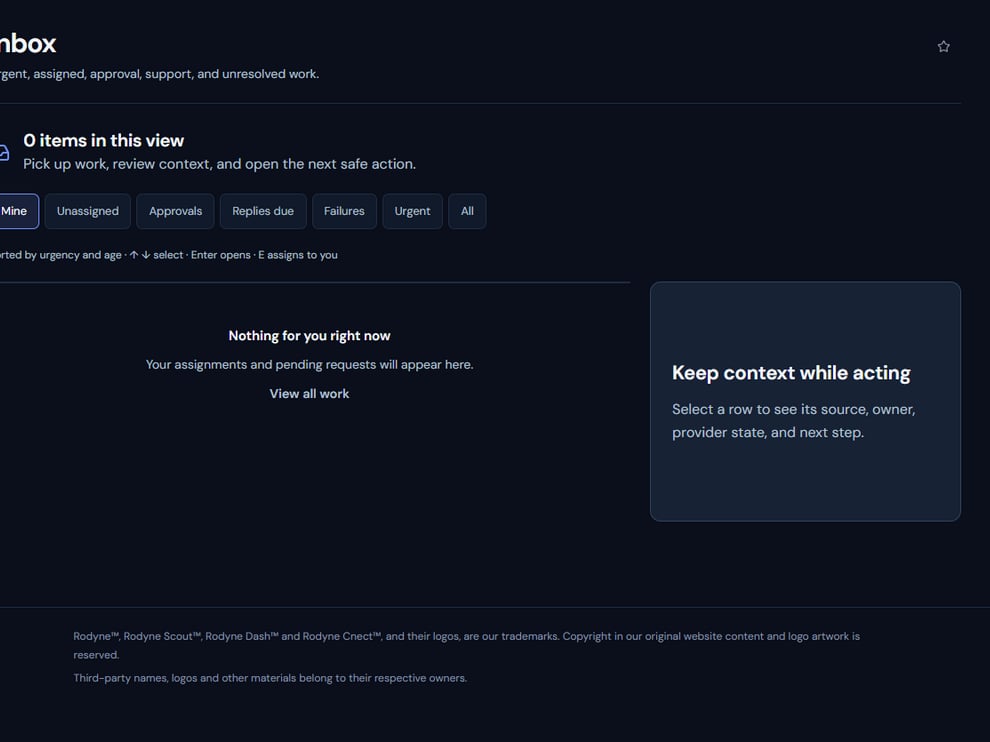 The screenshot above is from the live Rodyne product. Use it to orient yourself, but rely on the current record state and live provider checks when operating the workspace.
## Operating procedure
Use Bot Management for configuration and Community Management for day-to-day work.
The heading and helper text identify the current workspace surface and its scope.
Narrow by status, assignment, priority, or type before treating the visible list as complete.
Badges and cards summarize; the detail page remains authoritative.
Use Activity for asynchronous Discord, Roblox, and Studio outcomes.
## Acceptance checks
| Check | Ready when | If it is not ready |
| ------------- | --------------------------------------------- | ---------------------------------- |
| Navigation | Only capabilities assigned to you are visible | Ask an owner to review your access |
| Queue | Filters and counts describe the same scope | Clear filters and refresh |
| Provider work | The record shows a terminal outcome | Inspect its linked background job |
## Failure recovery
If a page appears empty, first clear filters and confirm the workspace. Then check permissions and data coverage. An empty permission-filtered queue is different from a healthy queue with zero items.
## Continue the workflow
The screenshot above is from the live Rodyne product. Use it to orient yourself, but rely on the current record state and live provider checks when operating the workspace.
## Operating procedure
Use Bot Management for configuration and Community Management for day-to-day work.
The heading and helper text identify the current workspace surface and its scope.
Narrow by status, assignment, priority, or type before treating the visible list as complete.
Badges and cards summarize; the detail page remains authoritative.
Use Activity for asynchronous Discord, Roblox, and Studio outcomes.
## Acceptance checks
| Check | Ready when | If it is not ready |
| ------------- | --------------------------------------------- | ---------------------------------- |
| Navigation | Only capabilities assigned to you are visible | Ask an owner to review your access |
| Queue | Filters and counts describe the same scope | Clear filters and refresh |
| Provider work | The record shows a terminal outcome | Inspect its linked background job |
## Failure recovery
If a page appears empty, first clear filters and confirm the workspace. Then check permissions and data coverage. An empty permission-filtered queue is different from a healthy queue with zero items.
## Continue the workflow