> ## Documentation Index
> Fetch the complete documentation index at: https://docs.rodyne.xyz/llms.txt
> Use this file to discover all available pages before exploring further.
# Quickstart
> Create and activate a Rodyne workspace in a safe order.
This guide takes an owner from first sign-in to a usable workspace. Keep Discord and Roblox administrator access available while you complete it.
## Before you start
You need:
* Permission to invite a bot to the Discord server.
* Access to the Roblox Creator Hub account that administers the target group.
* A payment method for hosted Stripe Checkout when live billing is enabled.
* A second trusted staff member if your rank policy requires independent approval.
Create the Roblox Open Cloud API key under an individual account with the required community permissions. Roblox group-management endpoints reject group-owned keys even when their scopes appear correct.
## Activate the workspace
Sign in with the Discord account that will own the workspace. Rodyne lists servers you can manage. Select the intended server carefully: the bot invitation and workspace are bound to that guild.
Open the generated Discord invitation and authorize it for the selected server. Rodyne waits for Discord to confirm bot membership before continuing.
Run the permission scan. Resolve missing permissions and role hierarchy issues before publishing panels or enabling moderation. See [Discord setup](/setup/discord) for the exact permission set.
Add the group and an individual-account Open Cloud API key with `group:read` and `group:write`. Complete the harmless capability review before enabling rank writes.
Select the plan that matches the number of staff, communities, experiences, history, and evidence storage you need. Checkout opens on Stripe; the workspace activates only after Rodyne verifies the subscription.
Bot Overview opens after activation. Work through Roblox access, role mappings, Studio, staff access, commands, and ticket panels. Each item links to its canonical settings page.
## First-day configuration
Complete these in order:
1. Invite one backup owner or manager and verify their access.
2. Configure role mappings from the lowest to highest Roblox rank.
3. Test `/verify` with a non-staff member.
4. Create one ticket-panel draft, run preflight, and send a test before publishing.
5. Create a low-risk rank request and confirm its provider read-back.
6. Review Bot Management → Activity for the completed jobs and audit events.
## Verify success
You are ready for normal use when:
* Bot Overview shows the Discord and Roblox connections as healthy.
* The bot role sits above every Discord role Rodyne must manage.
* `/help`, `/server`, `/verify`, and permitted staff commands are registered.
* A test member can link an identity and receive only the expected mapped roles.
* A test ticket opens in the configured private category with correct overwrites.
* A rank request reaches a terminal, provider-confirmed state.
Demo workspaces visibly simulate provider actions. A demo result is useful for learning the interface, but it is not evidence that live Discord, Roblox, Stripe, or Studio credentials are ready.
## If setup stops
| Symptom | What to do |
| -------------------------------------------- | ------------------------------------------------------------------------------------------------------------------------------------------------- |
| Server list is empty | Confirm the signed-in Discord account can manage the server, then retry the lookup. |
| Bot invite completed but Rodyne still waits | Confirm the bot is visible in the selected guild and that you did not authorize a different server. Retry the membership check. |
| Roblox key is rejected | Confirm it is an individual-account key, has `group:read` and `group:write`, and the owner can administer the group. |
| Checkout returns but activation stays locked | Wait for subscription reconciliation, refresh once, then use billing management if the charge is already active. Do not start repeated checkouts. |
| Commands are missing | Check Bot Management → Activity and Integrations for registration or permission errors; registration reconciles automatically. |
## Guided walkthrough
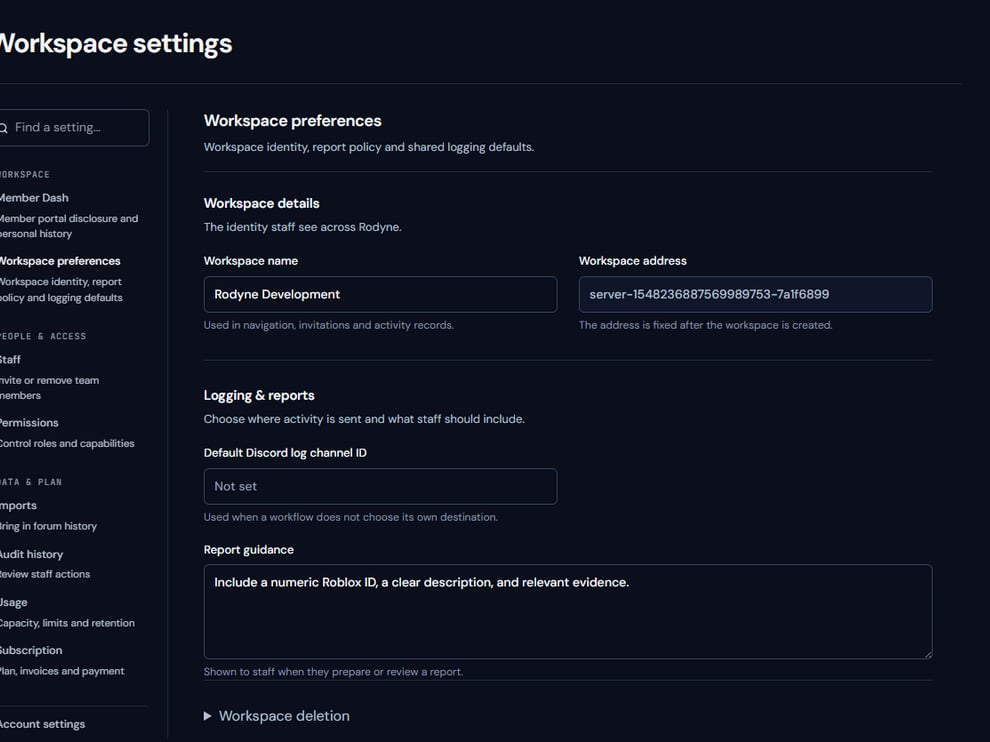 The screenshot above is from the live Rodyne product. Use it to orient yourself, but rely on the current record state and live provider checks when operating the workspace.
## Operating procedure
Match the workspace name and connected Discord server before adding staff or credentials.
Connect Discord first, then Roblox, and run the capability checks shown in Integrations.
Invite one trusted owner or manager and verify that they can sign in independently.
Test verification, one private ticket, and one low-risk rank request with controlled accounts.
Save the successful record IDs and final provider outcomes for the handoff to staff.
## Acceptance checks
| Check | Ready when | If it is not ready |
| ------- | ----------------------------------------------------- | ------------------------------------------- |
| Discord | Bot membership, intents, hierarchy, and commands pass | Re-run the Discord scan |
| Roblox | Group read/write capability passes | Check key owner, group resource, and scopes |
| Canary | The provider read-back matches the requested state | Open Activity and diagnose the target |
## Failure recovery
When setup stalls, avoid restarting the entire workspace. Re-open the failed step, preserve the selected server and group IDs, and correct only the failed provider capability. Repeated OAuth or checkout attempts can make diagnosis harder.
## Continue the workflow
The screenshot above is from the live Rodyne product. Use it to orient yourself, but rely on the current record state and live provider checks when operating the workspace.
## Operating procedure
Match the workspace name and connected Discord server before adding staff or credentials.
Connect Discord first, then Roblox, and run the capability checks shown in Integrations.
Invite one trusted owner or manager and verify that they can sign in independently.
Test verification, one private ticket, and one low-risk rank request with controlled accounts.
Save the successful record IDs and final provider outcomes for the handoff to staff.
## Acceptance checks
| Check | Ready when | If it is not ready |
| ------- | ----------------------------------------------------- | ------------------------------------------- |
| Discord | Bot membership, intents, hierarchy, and commands pass | Re-run the Discord scan |
| Roblox | Group read/write capability passes | Check key owner, group resource, and scopes |
| Canary | The provider read-back matches the requested state | Open Activity and diagnose the target |
## Failure recovery
When setup stalls, avoid restarting the entire workspace. Re-open the failed step, preserve the selected server and group IDs, and correct only the failed provider capability. Repeated OAuth or checkout attempts can make diagnosis harder.
## Continue the workflow