> ## Documentation Index
> Fetch the complete documentation index at: https://docs.rodyne.xyz/llms.txt
> Use this file to discover all available pages before exploring further.
# Understand analytics
> Read workload, activity, resolution, and coverage metrics without overclaiming the data.
Open **Community Management → Analytics** for workspace-level operating signals.
## What analytics can show
Depending on enabled modules and your permissions, analytics can summarize:
* Incoming and resolved work.
* Ticket and case workload.
* Rank request outcomes.
* Event activity and attendance coverage.
* Staff duty patterns.
* Provider failures and unresolved operations.
## Read coverage first
Every metric depends on the records Rodyne could observe. Before interpreting a trend, check:
* The time range.
* Whether the module was enabled for the whole range.
* Whether Discord or Studio ingestion had downtime.
* Whether filters exclude part of the workspace.
* Whether the metric counts created records, resolved records, people, or provider targets.
## Avoid false comparisons
* A shorter resolution time can reflect easier work, not better quality.
* Ticket volume can rise after a new panel makes support easier to access.
* Attendance duration is not an event pass rate.
* A provider HTTP success is not a verified outcome unless read-back completed.
* Assigned-work counts are permission-filtered for the viewer.
## Use analytics operationally
Good review questions include:
1. Which queue is accumulating unresolved work?
2. Which provider or integration is producing repeated failures?
3. Are protected workflows waiting for enough independent approvers?
4. Did a configuration change create a visible break in data coverage?
5. Which records should be sampled for qualitative review?
Use analytics to find where to inspect, then open the underlying tickets, cases, requests, events, or jobs before making a policy decision.
## Guided walkthrough
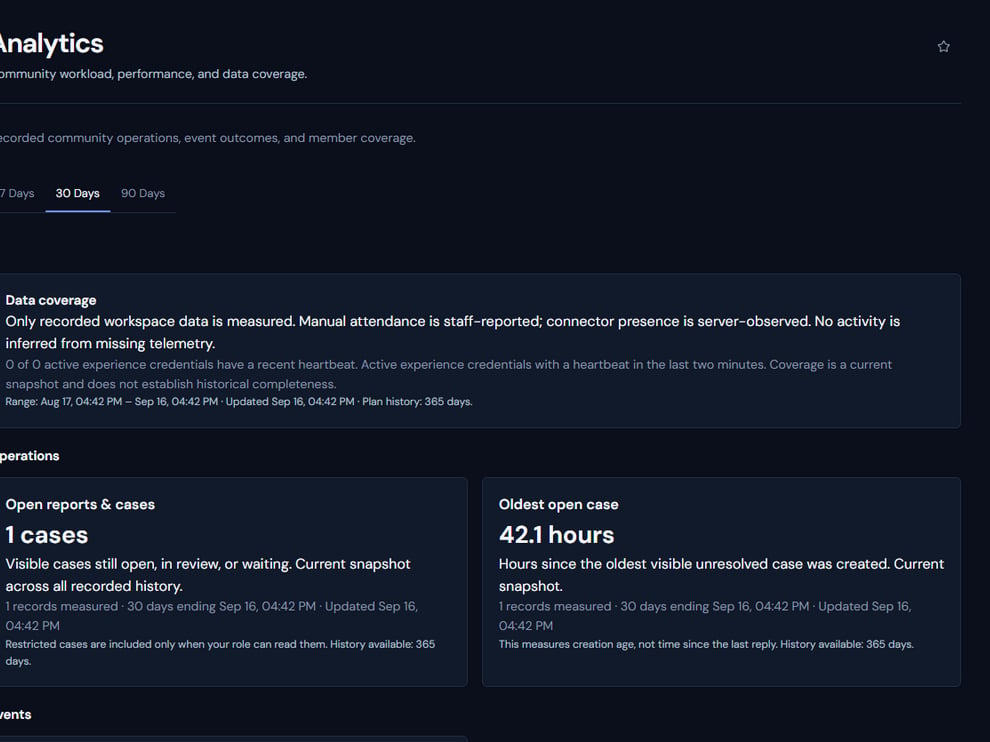 The screenshot above is from the live Rodyne product. Use it to orient yourself, but rely on the current record state and live provider checks when operating the workspace.
## Operating procedure
Choose the operational question before selecting a chart or period.
Confirm the module, integration, and selected interval have usable data.
Distinguish records, members, provider targets, and active staff.
Account for policy, panel, staffing, and ingestion changes between periods.
Open representative tickets, cases, requests, or events before acting on a trend.
## Acceptance checks
| Check | Ready when | If it is not ready |
| -------------- | --------------------------------------------- | -------------------------- |
| Period | The selected dates match the review | Correct range and timezone |
| Coverage | Ingestion and modules were active | Annotate the gap |
| Interpretation | The metric definition supports the conclusion | Return to source records |
## Failure recovery
When a chart is blank or loading, verify filters, permissions, and coverage before treating it as zero activity. Use the underlying queue as the operational fallback.
## Continue the workflow
The screenshot above is from the live Rodyne product. Use it to orient yourself, but rely on the current record state and live provider checks when operating the workspace.
## Operating procedure
Choose the operational question before selecting a chart or period.
Confirm the module, integration, and selected interval have usable data.
Distinguish records, members, provider targets, and active staff.
Account for policy, panel, staffing, and ingestion changes between periods.
Open representative tickets, cases, requests, or events before acting on a trend.
## Acceptance checks
| Check | Ready when | If it is not ready |
| -------------- | --------------------------------------------- | -------------------------- |
| Period | The selected dates match the review | Correct range and timezone |
| Coverage | Ingestion and modules were active | Annotate the gap |
| Interpretation | The metric definition supports the conclusion | Return to source records |
## Failure recovery
When a chart is blank or loading, verify filters, permissions, and coverage before treating it as zero activity. Use the underlying queue as the operational fallback.
## Continue the workflow