> ## Documentation Index
> Fetch the complete documentation index at: https://docs.rodyne.xyz/llms.txt
> Use this file to discover all available pages before exploring further.
# Publish announcements
> Draft, schedule, and track Discord announcements with controlled mentions.
Open **Bot Management → Announcements** to compose, preview, schedule, and track Discord delivery.
## Create an announcement
An announcement includes:
* A title.
* Message content up to the configured platform limit.
* A destination channel from the connected guild.
* An optional scheduled delivery time.
* Up to five explicitly allowed role mentions.
Rodyne suppresses all other mentions. The preview shows the configured payload but does not prove that the bot can still send to the channel.
## Publish now or schedule
Review the channel and mentions, then confirm publication. Rodyne queues delivery and records the provider outcome.
Choose the intended local time carefully and verify the stored time. At execution, Rodyne rechecks the workspace, entitlement, channel, and provider availability.
## Track delivery
Open the announcement or **Bot Management → Activity**. Do not treat `Queued` or `Running` as delivered. A confirmed provider response moves the job to `Completed`; failures and ambiguous results remain visible for review.
## Safe retry practice
1. Open the delivery detail.
2. Check whether the message already exists in Discord.
3. If the result is clearly failed and retry is offered, use the record's repair action.
4. If the outcome is uncertain, resolve it manually before retrying to avoid a duplicate broadcast.
Never widen allowed mentions just to make a test visible. Test in a controlled channel, then publish the reviewed payload to the production channel.
## Guided walkthrough
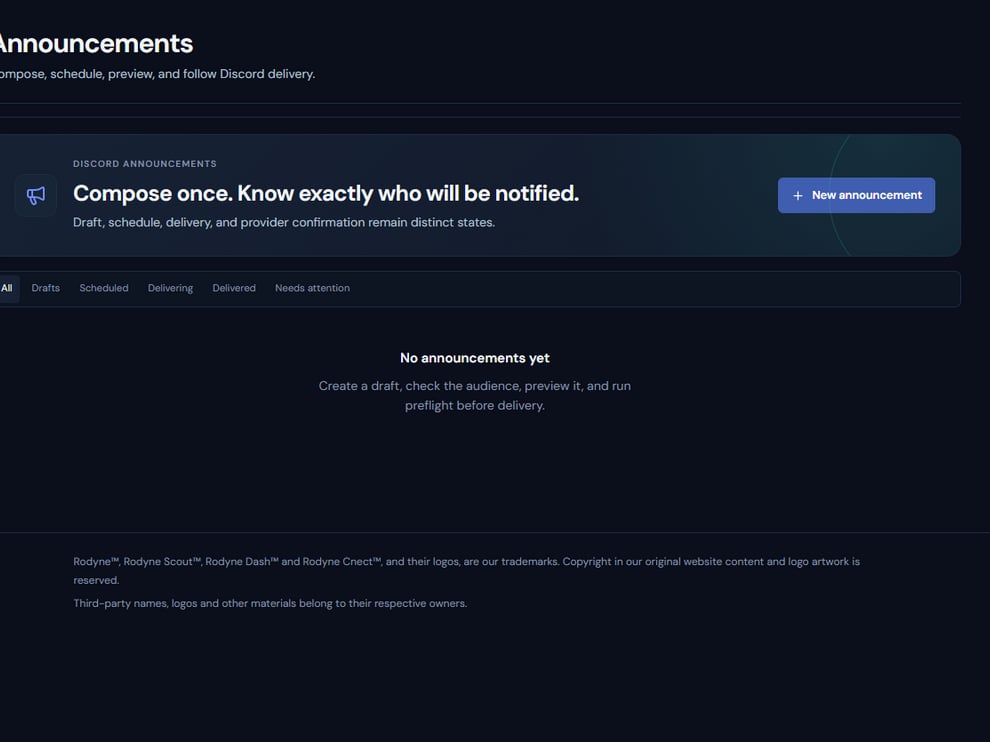 The screenshot above is from the live Rodyne product. Use it to orient yourself, but rely on the current record state and live provider checks when operating the workspace.
## Operating procedure
Confirm the channel purpose and bot send permissions before composing.
Keep the key action and timing visible without relying on mentions.
Select only the reviewed roles and inspect the rendered preview.
Confirm the stored execution time and who will monitor delivery.
Follow the job to completion and inspect the actual Discord post.
## Acceptance checks
| Check | Ready when | If it is not ready |
| ----------- | ------------------------------------------ | ----------------------------------------------- |
| Destination | The exact production channel is selected | Return to draft and correct it |
| Mentions | Only approved roles can notify | Remove unexpected mentions |
| Delivery | The live Discord message matches the draft | Review uncertain or failed outcome before retry |
## Failure recovery
If the scheduled job becomes uncertain, search the destination channel by time and content. Retrying without that check can create a duplicate broadcast.
## Continue the workflow
The screenshot above is from the live Rodyne product. Use it to orient yourself, but rely on the current record state and live provider checks when operating the workspace.
## Operating procedure
Confirm the channel purpose and bot send permissions before composing.
Keep the key action and timing visible without relying on mentions.
Select only the reviewed roles and inspect the rendered preview.
Confirm the stored execution time and who will monitor delivery.
Follow the job to completion and inspect the actual Discord post.
## Acceptance checks
| Check | Ready when | If it is not ready |
| ----------- | ------------------------------------------ | ----------------------------------------------- |
| Destination | The exact production channel is selected | Return to draft and correct it |
| Mentions | Only approved roles can notify | Remove unexpected mentions |
| Delivery | The live Discord message matches the draft | Review uncertain or failed outcome before retry |
## Failure recovery
If the scheduled job becomes uncertain, search the destination channel by time and content. Retrying without that check can create a duplicate broadcast.
## Continue the workflow