> ## Documentation Index
> Fetch the complete documentation index at: https://docs.rodyne.xyz/llms.txt
> Use this file to discover all available pages before exploring further.
# Run events
> Schedule sessions, track attendance, confirm results, and create follow-up rank requests.
Open **Community Management → Events** to schedule and host trainings, sessions, and other community activity.
## Create an event
Define:
* Title and description.
* Start and end time with the intended timezone.
* Optional Roblox experience.
* Minimum attendance guideline.
If Discord event delivery or reminders are enabled, follow their job outcomes separately from the saved Rodyne event.
## Host on mobile or desktop
The event host view keeps roster actions, attendance, and results available on small screens. Staff can add manual attendance when policy allows. Studio connector attendance is server-observed and appears separately.
## Attendance is not a result
Attendance records presence. It does not prove pass, completion, promotion eligibility, or staff performance.
* Overlapping Studio intervals are merged.
* The minimum duration is a guideline.
* Staff explicitly confirm pass/fail or another result.
* A result can support a separate rank request; it does not bypass rank approvals.
## Follow-up rank requests
After a confirmed result, an authorized host can start a rank request with the event link attached. The request still checks the member's current rank, target protection, approver separation, and provider outcome.
## Discord commands
`/event list`, `/event create`, `/event view`, and `/event attendance` use the same event records as the dashboard. Permissions and current workspace scope apply to both surfaces.
Before ending the session, reconcile manual and connector attendance, confirm results, and review any follow-up requests that remain drafts or waiting for approval.
## Guided walkthrough
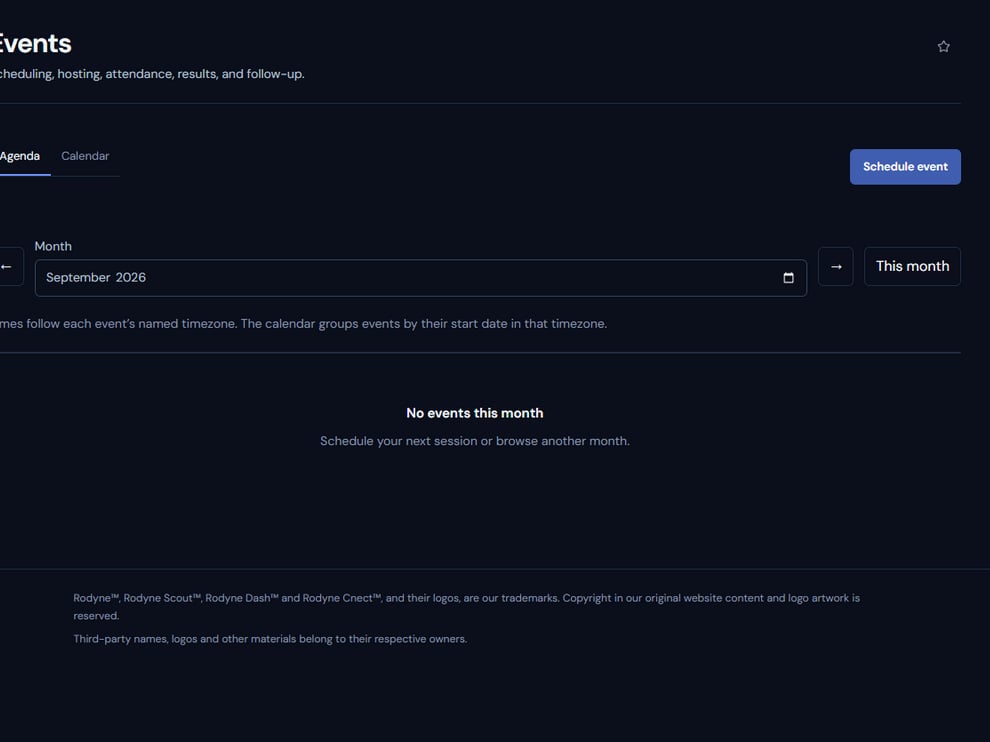 The screenshot above is from the live Rodyne product. Use it to orient yourself, but rely on the current record state and live provider checks when operating the workspace.
## Operating procedure
Set title, time, timezone, host, and optional experience.
Confirm roster responsibilities and how manual and Studio attendance will be reconciled.
Record attendance without treating duration as a pass or performance result.
Have authorized staff explicitly record pass, fail, or other outcomes.
Start any rank request from the event context and follow its normal approval policy.
## Acceptance checks
| Check | Ready when | If it is not ready |
| ---------- | -------------------------------------------- | -------------------------------------- |
| Time | Stored timezone and visible time are correct | Edit before reminders run |
| Attendance | Intervals are attributable and de-duplicated | Reconcile manual and connector records |
| Result | A human-confirmed result is present | Do not create automatic promotion |
## Failure recovery
If connector attendance is missing, preserve manual notes and diagnose the heartbeat, universe, event ID, and server interval. Do not reconstruct exact attendance from memory when the evidence is incomplete.
## Continue the workflow
The screenshot above is from the live Rodyne product. Use it to orient yourself, but rely on the current record state and live provider checks when operating the workspace.
## Operating procedure
Set title, time, timezone, host, and optional experience.
Confirm roster responsibilities and how manual and Studio attendance will be reconciled.
Record attendance without treating duration as a pass or performance result.
Have authorized staff explicitly record pass, fail, or other outcomes.
Start any rank request from the event context and follow its normal approval policy.
## Acceptance checks
| Check | Ready when | If it is not ready |
| ---------- | -------------------------------------------- | -------------------------------------- |
| Time | Stored timezone and visible time are correct | Edit before reminders run |
| Attendance | Intervals are attributable and de-duplicated | Reconcile manual and connector records |
| Result | A human-confirmed result is present | Do not create automatic promotion |
## Failure recovery
If connector attendance is missing, preserve manual notes and diagnose the heartbeat, universe, event ID, and server interval. Do not reconstruct exact attendance from memory when the evidence is incomplete.
## Continue the workflow