> ## Documentation Index
> Fetch the complete documentation index at: https://docs.rodyne.xyz/llms.txt
> Use this file to discover all available pages before exploring further.
# Use the member directory
> Find identities, roles, history, attendance, and related community work.
Open **Community Management → Members** to search the workspace's member records and connected identities.
## What a member record contains
Depending on your permissions and available data, a member view can include:
* Discord and Roblox identities and verification state.
* Current recorded roles and mapped rank context.
* Restrictions and moderation history.
* Support tickets and related reports/cases.
* Event attendance and confirmed results.
* Rank requests and provider outcomes.
* An audited activity timeline.
Restricted records remain filtered even when the same person appears elsewhere in the workspace.
## Search and pagination
Search by the visible identity fields supported by the workspace. The directory uses cursor pagination so it remains stable as records change. Clear filters before assuming a member is absent.
## Start work from a member
Authorized staff can use the member context to:
* Start a rank request.
* Add a member to a report or case.
* Review ticket context.
* Record an event result.
* Inspect identity conflicts before a provider action.
## Batch rank preparation
Each eligible member row can hold a target rank selection. Draft selections persist for the current staff member across filtering, pagination, and reloads. One shared reason submits up to 100 rows; each row still retains its own approval policy and stale-state checks.
Do not use a similar display name as identity proof. Confirm the exact Discord and Roblox IDs, especially before moderation, discharge, or cross-community work.
## Guided walkthrough
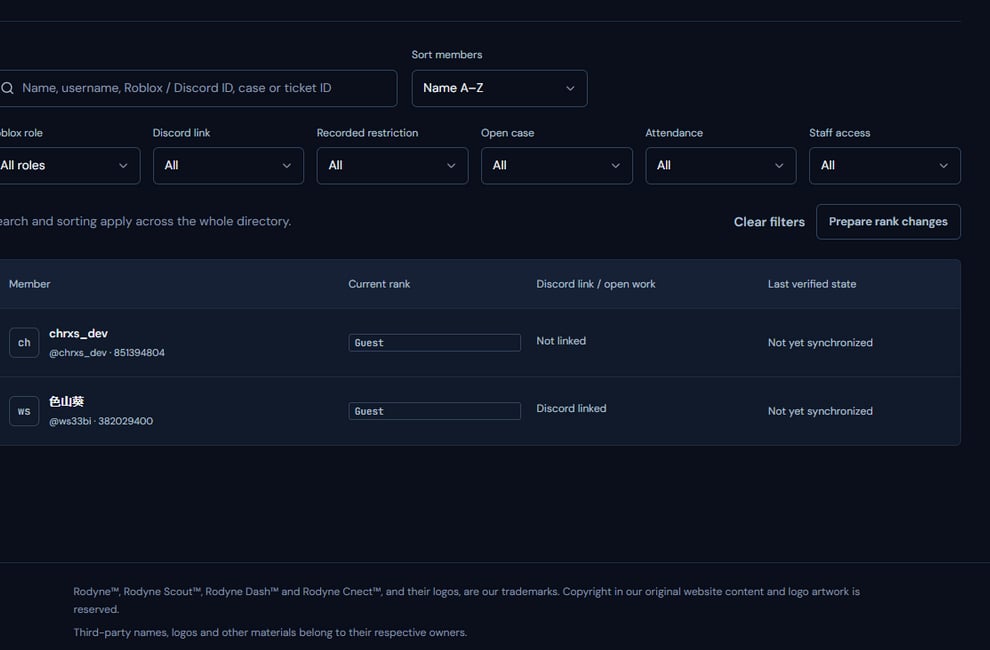 The screenshot above is from the live Rodyne product. Use it to orient yourself, but rely on the current record state and live provider checks when operating the workspace.
## Operating procedure
Prefer Discord and Roblox IDs over display names when consequences matter.
Review first-party verification and any identity conflict before action.
Inspect rank, ticket, case, event, and restriction context allowed by your role.
Create the request or record from the verified member context.
Confirm the new record and its final outcome appear on the same member.
## Acceptance checks
| Check | Ready when | If it is not ready |
| -------- | ------------------------------------------------------- | ------------------------------- |
| Identity | Exact provider IDs match the intended person | Stop and resolve the identity |
| Scope | The active workspace owns the record | Switch to the correct workspace |
| History | Restricted details are only visible to authorized staff | Review capabilities |
## Failure recovery
If search finds multiple similar people, do not merge records or proceed from display names. Compare provider IDs, first-party ownership, guild membership, and audited links.
## Continue the workflow
The screenshot above is from the live Rodyne product. Use it to orient yourself, but rely on the current record state and live provider checks when operating the workspace.
## Operating procedure
Prefer Discord and Roblox IDs over display names when consequences matter.
Review first-party verification and any identity conflict before action.
Inspect rank, ticket, case, event, and restriction context allowed by your role.
Create the request or record from the verified member context.
Confirm the new record and its final outcome appear on the same member.
## Acceptance checks
| Check | Ready when | If it is not ready |
| -------- | ------------------------------------------------------- | ------------------------------- |
| Identity | Exact provider IDs match the intended person | Stop and resolve the identity |
| Scope | The active workspace owns the record | Switch to the correct workspace |
| History | Restricted details are only visible to authorized staff | Review capabilities |
## Failure recovery
If search finds multiple similar people, do not merge records or proceed from display names. Compare provider IDs, first-party ownership, guild membership, and audited links.
## Continue the workflow