> ## Documentation Index
> Fetch the complete documentation index at: https://docs.rodyne.xyz/llms.txt
> Use this file to discover all available pages before exploring further.
# Manage staff and duty
> Track availability, live duty, shift history, and audited corrections.
Open **Community Management → Staff & duty**. Staff administration and invitations remain under workspace settings.
## Clock in
Eligible staff choose a duty area, such as Discord support or Roblox moderation, and clock in. The server stores the start time, so the timer survives navigation, refreshes, and browser restarts.
Only one active shift is allowed per person in a workspace. Clock out to create the completed interval.
## Visibility
* Workspace staff can see the current on-duty list.
* Each staff member can read their own paginated shift history.
* Team history and corrections require owner, manager, or `duty.manage` access.
* Viewers cannot clock in unless they receive `duty.clock` explicitly.
## Availability
Staff can keep a self-reported availability state. The roster also shows assigned-work counts limited to queues the viewer is allowed to read; it does not leak restricted case or ticket counts.
## Correct a shift
A correction requires:
* A reason.
* Valid, non-future timestamps.
* The current record version.
* `duty.manage` access.
A correction can close an active shift but cannot reopen a completed one. Original values, corrected values, and the reason remain in the append-only audit trail.
Duty is self-reported staff time. It is separate from server-observed Roblox event attendance.
## Guided walkthrough
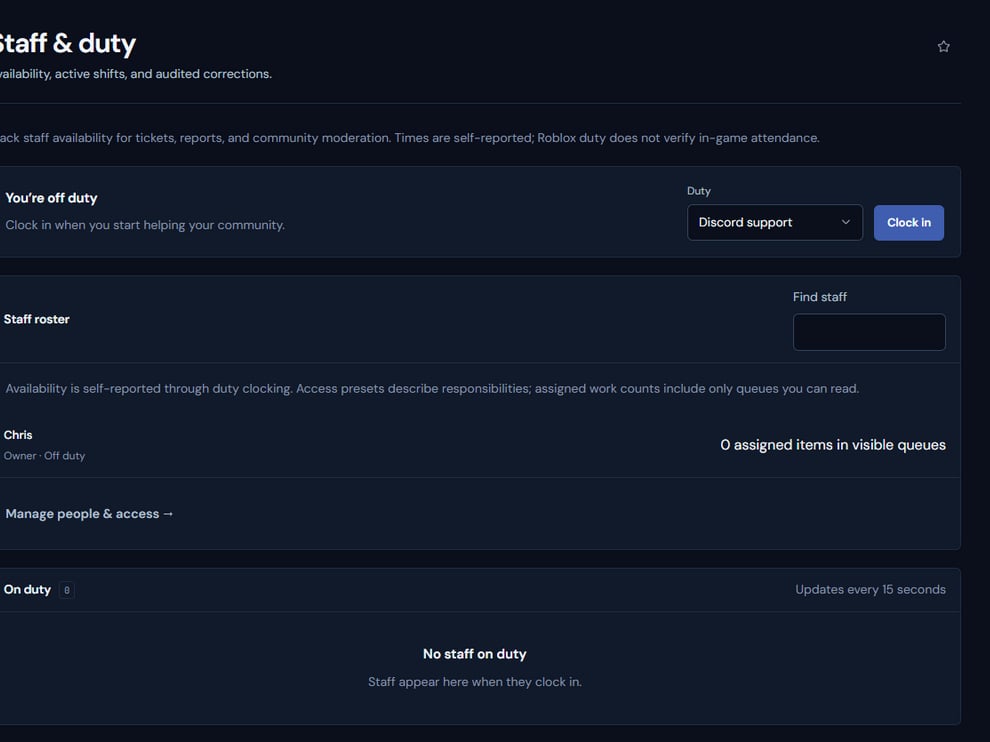 The screenshot above is from the live Rodyne product. Use it to orient yourself, but rely on the current record state and live provider checks when operating the workspace.
## Operating procedure
Keep the self-reported state current before joining operational queues.
Clock into the work area that best describes the active responsibility.
Use queue assignments rather than duty presence alone to show ownership.
End the shift promptly so the stored interval reflects actual activity.
Managers should record a reason and preserve the original values when correcting history.
## Acceptance checks
| Check | Ready when | If it is not ready |
| ------------ | ------------------------------------------------- | ------------------------------------------------ |
| Active shift | Only one current shift exists | Close the stale shift with an audited correction |
| Visibility | Viewer sees only permitted workload counts | Review queue permissions |
| History | Correction reason and prior values remain visible | Do not replace the audit entry |
## Failure recovery
A timer displayed in the browser is not the source of truth; the server-side interval is. If a browser closes unexpectedly, reopen Staff & duty and end or correct the active shift.
## Continue the workflow
The screenshot above is from the live Rodyne product. Use it to orient yourself, but rely on the current record state and live provider checks when operating the workspace.
## Operating procedure
Keep the self-reported state current before joining operational queues.
Clock into the work area that best describes the active responsibility.
Use queue assignments rather than duty presence alone to show ownership.
End the shift promptly so the stored interval reflects actual activity.
Managers should record a reason and preserve the original values when correcting history.
## Acceptance checks
| Check | Ready when | If it is not ready |
| ------------ | ------------------------------------------------- | ------------------------------------------------ |
| Active shift | Only one current shift exists | Close the stale shift with an audited correction |
| Visibility | Viewer sees only permitted workload counts | Review queue permissions |
| History | Correction reason and prior values remain visible | Do not replace the audit entry |
## Failure recovery
A timer displayed in the browser is not the source of truth; the server-side interval is. If a browser closes unexpectedly, reopen Staff & duty and end or correct the active shift.
## Continue the workflow