> ## Documentation Index
> Fetch the complete documentation index at: https://docs.rodyne.xyz/llms.txt
> Use this file to discover all available pages before exploring further.
# Connect Discord
> Invite Rodyne, configure intents and permissions, and verify command and ticket readiness.
Discord is the everyday surface for members and many staff workflows. The dashboard remains the control plane for configuration, approvals, audit, and repair.
## Required bot configuration
Enable these privileged intents in the Discord Developer Portal:
* **Server Members Intent** for live member, role, and guild-membership checks.
* **Message Content Intent** when using ticket conversation capture and history recovery.
Rodyne also uses Guilds and Guild Messages.
## Recommended guild permissions
Grant only where needed:
* View Channels
* Send Messages
* Embed Links
* Attach Files
* Read Message History
* Manage Channels
* Manage Roles
* The relevant native moderation permissions if ban, kick, or timeout workflows are enabled
Discord Administrator is not a Rodyne staff grant. Dashboard access comes from workspace membership or an enabled, verified Discord role policy.
## Role hierarchy
Move the Rodyne bot role above:
* Mapped member roles it must add or remove.
* Support roles it must add to private ticket channels.
* Members it must moderate.
Rodyne checks the actor and bot's current Discord permissions and hierarchy at execution time. A previously valid request can safely fail if roles changed while it waited.
## Connect and scan
During activation, choose the managed guild and use the generated bot invitation. The selected server is locked into that setup attempt.
Open Bot Management → Integrations → Discord and refresh the role/permission catalog. Resolve missing or blocked capabilities.
Use the scanned catalog when creating mappings, staff role rules, and ticket types. Refresh again after significant Discord role changes.
Open Bot Management → Commands and Activity. Built-in and enabled custom commands reconcile to the guild automatically.
## Command troubleshooting
| Problem | Check |
| ---------------------------------------------- | ------------------------------------------------------------------------------------------------------------------ |
| Command is missing | It may be disabled, still reconciling, or blocked by a registration error in Activity. |
| User can see a command but execution is denied | Rodyne capabilities, current guild membership, Discord native permission, or hierarchy may have changed. |
| Role sync changed nothing | Confirm a verified identity, group membership lookup, mapping, and that the Discord role is not protected. |
| Ticket panel publishes but opening fails | Re-run preflight and check the selected category, support roles, channel permission overwrites, and bot hierarchy. |
## Verify with a test account
Use a separate non-staff Discord account to confirm:
1. Public help and verification commands are available.
2. Verification opens the expected Cnect flow.
3. Only eligible mapped roles are changed.
4. A ticket channel is private from unrelated members.
5. Closing and reopening enforce the expected send/access behavior.
## Guided walkthrough
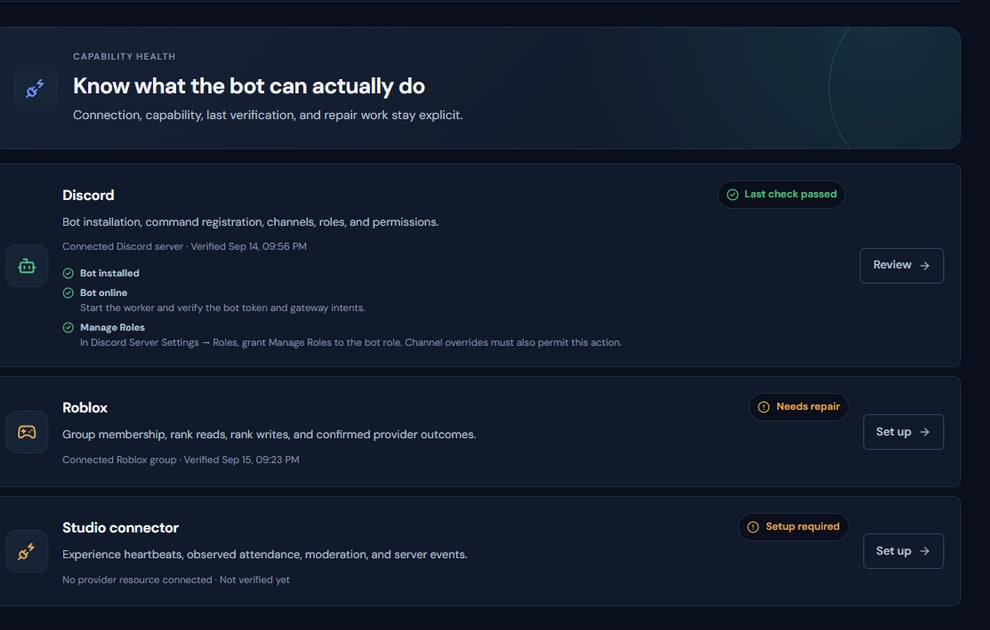 The screenshot above is from the live Rodyne product. Use it to orient yourself, but rely on the current record state and live provider checks when operating the workspace.
## Operating procedure
Match the connected guild ID with the server where the bot was invited.
Enable Server Members and, when ticket capture is used, Message Content in the bot application.
Move it above every managed role and member it must moderate.
Run the Rodyne scan after changing Discord permissions or hierarchy.
Test a command, a private ticket, and role reconciliation from separate member accounts.
## Acceptance checks
| Check | Ready when | If it is not ready |
| ------------- | -------------------------------------------------------- | ------------------------------------------------------------ |
| Guild binding | The intended guild is connected | Remove the mistaken setup attempt and bind the correct guild |
| Hierarchy | The bot outranks all managed roles | Move the role and rescan |
| Commands | Enabled commands appear and execute for authorized users | Inspect registration in Activity |
## Failure recovery
Discord permission failures are evaluated at execution time. Capture the channel, target role, actor, and bot hierarchy as they exist when the operation fails; an earlier successful scan is not proof that the live state is still valid.
## Continue the workflow
The screenshot above is from the live Rodyne product. Use it to orient yourself, but rely on the current record state and live provider checks when operating the workspace.
## Operating procedure
Match the connected guild ID with the server where the bot was invited.
Enable Server Members and, when ticket capture is used, Message Content in the bot application.
Move it above every managed role and member it must moderate.
Run the Rodyne scan after changing Discord permissions or hierarchy.
Test a command, a private ticket, and role reconciliation from separate member accounts.
## Acceptance checks
| Check | Ready when | If it is not ready |
| ------------- | -------------------------------------------------------- | ------------------------------------------------------------ |
| Guild binding | The intended guild is connected | Remove the mistaken setup attempt and bind the correct guild |
| Hierarchy | The bot outranks all managed roles | Move the role and rescan |
| Commands | Enabled commands appear and execute for authorized users | Inspect registration in Activity |
## Failure recovery
Discord permission failures are evaluated at execution time. Capture the channel, target role, actor, and bot hierarchy as they exist when the operation fails; an earlier successful scan is not proof that the live state is still valid.
## Continue the workflow