> ## Documentation Index
> Fetch the complete documentation index at: https://docs.rodyne.xyz/llms.txt
> Use this file to discover all available pages before exploring further.
# Connect Roblox
> Configure Open Cloud group access and verify safe rank capabilities.
Rodyne uses Roblox Open Cloud for group membership and rank operations. The key is stored server-side and is never exposed to the browser.
## Create the API key
In Creator Hub, create the key under a user account that has the required permissions in the target group.
Scope the key to the exact Roblox group used by the workspace. Double-check the numeric group ID.
Add Group Read (`group:read`) and Group Write (`group:write`). Read is needed for membership and verification; write is needed for rank execution.
Open Bot Management → Integrations → Roblox, enter the key through the protected settings flow, and run the capability review.
Do not paste Roblox keys into Discord, screenshots, source control, support tickets, or client-side environment variables. Rotate a key immediately if it is exposed.
## Why group-owned keys fail
Roblox group management endpoints require the key owner to be an individual account with community authority. A group-owned key can appear active and correctly scoped but still be rejected for group rank management.
## Build the rank ladder
After the connection passes:
1. Open Bot Management → Automations.
2. Add the primary group.
3. Select the real Roblox Rank ID for each managed rank.
4. Map each rank to its Discord role.
5. Set a unique numeric order from low to high.
6. Mark protected ranks and configure the required approval count.
Secondary groups can participate in Discord role synchronization. Normal promotion, demotion, and rank requests use the primary group's ladder.
## Safe verification
Run a canary request for a controlled member:
* The expected current role must match.
* The target rank must be mapped and not protected.
* Required independent approvals must be collected.
* The job must confirm the Roblox read-back.
* Discord synchronization may follow as a separate outcome.
See [Outcomes and jobs](/reference/outcomes-and-jobs) before handling partial or uncertain results.
## Guided walkthrough
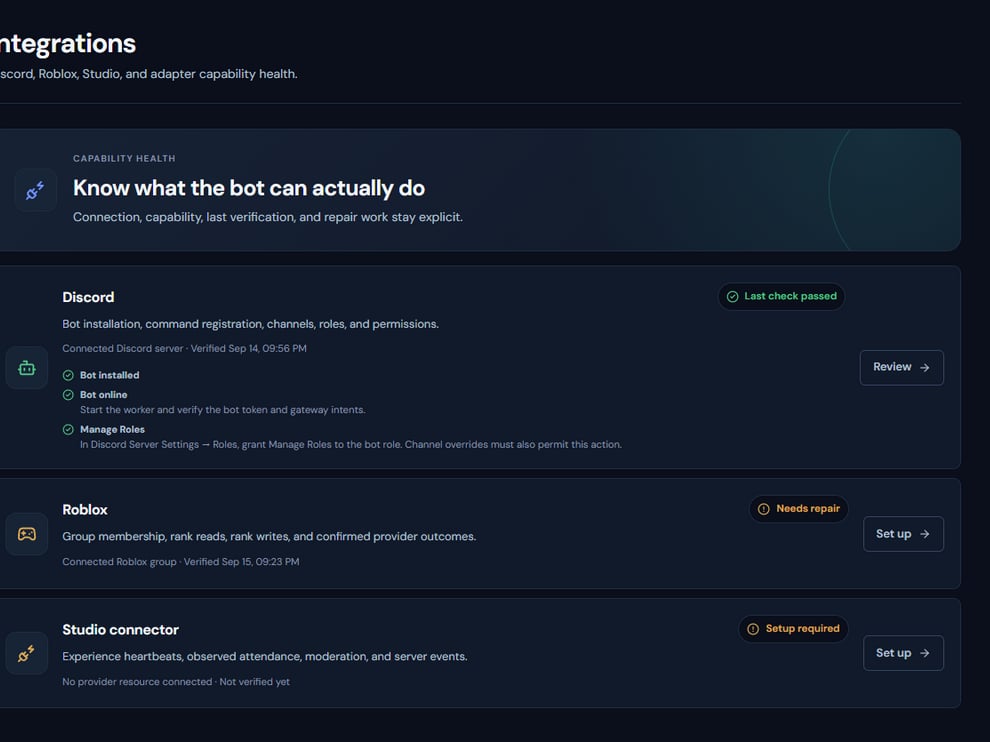 The screenshot above is from the live Rodyne product. Use it to orient yourself, but rely on the current record state and live provider checks when operating the workspace.
## Operating procedure
Copy the numeric group ID from the actual group, not a search result or experience URL.
Use an individual administrator account and scope the key only to the required group.
Include group read for verification and group write for approved rank changes.
Let Rodyne confirm the group, key owner authority, and supported operations.
Change one controlled member and verify the resulting Roblox rank before broad rollout.
## Acceptance checks
| Check | Ready when | If it is not ready |
| --------- | ------------------------------------------- | --------------------------------- |
| Key owner | An individual account administers the group | Replace a group-owned key |
| Scope | The exact group has read and write scopes | Edit or recreate the key |
| Read-back | Roblox returns the intended rank ID | Treat the operation as unresolved |
## Failure recovery
If Roblox rejects a key that appears valid, verify its owner and resource scope first. Never expose the key in screenshots or support messages; rotate it immediately if disclosure is possible.
## Continue the workflow
The screenshot above is from the live Rodyne product. Use it to orient yourself, but rely on the current record state and live provider checks when operating the workspace.
## Operating procedure
Copy the numeric group ID from the actual group, not a search result or experience URL.
Use an individual administrator account and scope the key only to the required group.
Include group read for verification and group write for approved rank changes.
Let Rodyne confirm the group, key owner authority, and supported operations.
Change one controlled member and verify the resulting Roblox rank before broad rollout.
## Acceptance checks
| Check | Ready when | If it is not ready |
| --------- | ------------------------------------------- | --------------------------------- |
| Key owner | An individual account administers the group | Replace a group-owned key |
| Scope | The exact group has read and write scopes | Edit or recreate the key |
| Read-back | Roblox returns the intended rank ID | Treat the operation as unresolved |
## Failure recovery
If Roblox rejects a key that appears valid, verify its owner and resource scope first. Never expose the key in screenshots or support messages; rotate it immediately if disclosure is possible.
## Continue the workflow