> ## Documentation Index
> Fetch the complete documentation index at: https://docs.rodyne.xyz/llms.txt
> Use this file to discover all available pages before exploring further.
# Install the Studio connector
> Send signed heartbeats, attendance, and in-game reports from Roblox servers.
The Rodyne Studio connector sends server-authenticated heartbeats, optional attendance intervals, and in-game reports. It does not execute code supplied by Rodyne, inject scripts, listen to client RemoteEvents, or run admin commands.
## Install
In Roblox Studio, open Game Settings → Security and enable **Allow HTTP Requests**.
In `ServerScriptService`, create a folder named `Relay`.
Create a ModuleScript named `SHA256` and paste the official `SHA256.luau` release supplied by Rodyne.
Create a server Script named `Relay` and paste `Relay.server.luau`.
In Bot Management → Integrations → Studio, create a credential scoped to the experience's **universe ID**, not its place ID.
Copy the credential ID and one-time secret into the server script. Set `INGRESS_URL` to the HTTPS hooks origin without a trailing slash, publish, and start a server.
Return to Studio integration settings and wait for a recent heartbeat. Creating a credential by itself does not prove the connector is installed.
## Attendance
Set `EVENT_ID` to the scheduled Rodyne event UUID and ensure the event uses the same universe ID. Server-observed `Player.UserId` is the identity source.
Attendance records presence only:
* Overlapping intervals are merged when calculating duration.
* A duration does not imply pass or completion.
* Staff confirm event results separately.
## In-game reports
Call the server-only `SubmitReport` BindableFunction from your existing validated server handler:
```lua theme={null}
local accepted = game.ServerScriptService.Relay:WaitForChild("SubmitReport"):Invoke(
reporterPlayer,
reportedPlayer,
"Abusive behaviour",
"The submitted report description"
)
```
Both values must be `Player` instances currently in the server. Never accept a client-supplied reporter ID. A `true` result means ingress accepted the signed event; record creation continues asynchronously. Show a failure to the member when it returns `false`.
## Rotate a credential
1. Create a replacement credential.
2. Publish the replacement ID and secret to the experience.
3. Wait for a heartbeat from the new credential.
4. Revoke the old credential.
Revoked or mismatched credentials, bad signatures, stale timestamps, and wrong universe IDs are rejected. Retries must preserve the same event ID so ingestion remains idempotent.
## Guided walkthrough
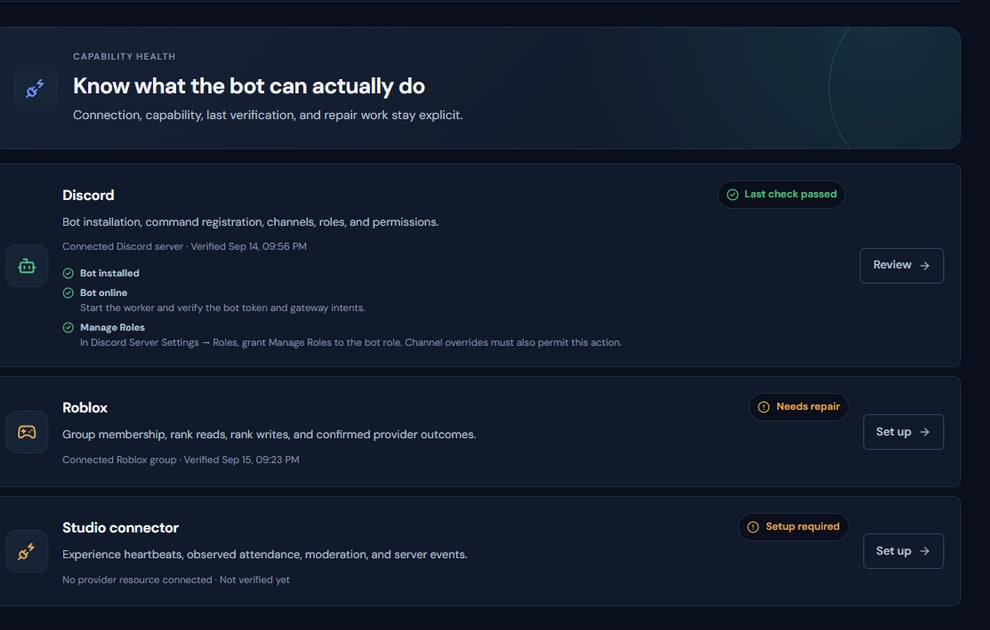 The screenshot above is from the live Rodyne product. Use it to orient yourself, but rely on the current record state and live provider checks when operating the workspace.
## Operating procedure
Resolve the experience's universe ID and keep it separate from place IDs.
Generate one credential for the intended experience and copy its secret once.
Place the connector in ServerScriptService and keep secrets away from client containers.
A Studio edit alone does not produce a live heartbeat.
Confirm a recent heartbeat, then test one attendance interval or controlled report.
## Acceptance checks
| Check | Ready when | If it is not ready |
| ---------- | ---------------------------------------------------------- | ------------------------------------------------------ |
| HTTP | Allow HTTP Requests is enabled in the published experience | Enable it and republish |
| Credential | Universe ID and signature match | Replace the credential without reusing exposed secrets |
| Heartbeat | A recent live-server heartbeat appears | Check ingress URL, clock, and server logs |
## Failure recovery
A missing heartbeat is usually a deployment, universe, URL, signature, or clock problem. Rotate by overlapping old and new credentials until the new heartbeat is visible; revoking first can strand active servers.
## Continue the workflow
The screenshot above is from the live Rodyne product. Use it to orient yourself, but rely on the current record state and live provider checks when operating the workspace.
## Operating procedure
Resolve the experience's universe ID and keep it separate from place IDs.
Generate one credential for the intended experience and copy its secret once.
Place the connector in ServerScriptService and keep secrets away from client containers.
A Studio edit alone does not produce a live heartbeat.
Confirm a recent heartbeat, then test one attendance interval or controlled report.
## Acceptance checks
| Check | Ready when | If it is not ready |
| ---------- | ---------------------------------------------------------- | ------------------------------------------------------ |
| HTTP | Allow HTTP Requests is enabled in the published experience | Enable it and republish |
| Credential | Universe ID and signature match | Replace the credential without reusing exposed secrets |
| Heartbeat | A recent live-server heartbeat appears | Check ingress URL, clock, and server logs |
## Failure recovery
A missing heartbeat is usually a deployment, universe, URL, signature, or clock problem. Rotate by overlapping old and new credentials until the new heartbeat is visible; revoking first can strand active servers.
## Continue the workflow