
Bot Management
Community Management
Workspace switcher and search
The workspace switcher changes the active community. Every API read and write is scoped to the selected workspace; copying a record URL from another workspace does not bypass access checks. Use dashboard search or the command palette to find pages and actions. Results are filtered by your capabilities. If a page is absent, ask an owner to review your preset or custom grants rather than reusing another person’s session.Inbox and status badges
Navigation badges show work that needs attention, including waiting rank approvals, support tickets, unresolved cases, and provider health failures. A badge is a queue signal, not a substitute for the record’s detailed state.Appearance and responsive use
Rodyne supports light and dark appearance preferences. Core workflows are responsive; on small screens the highest-frequency pages appear first. Long forms preserve unsaved edits where supported, but do not rely on browser storage as the only copy of investigation notes or evidence.Guided walkthrough
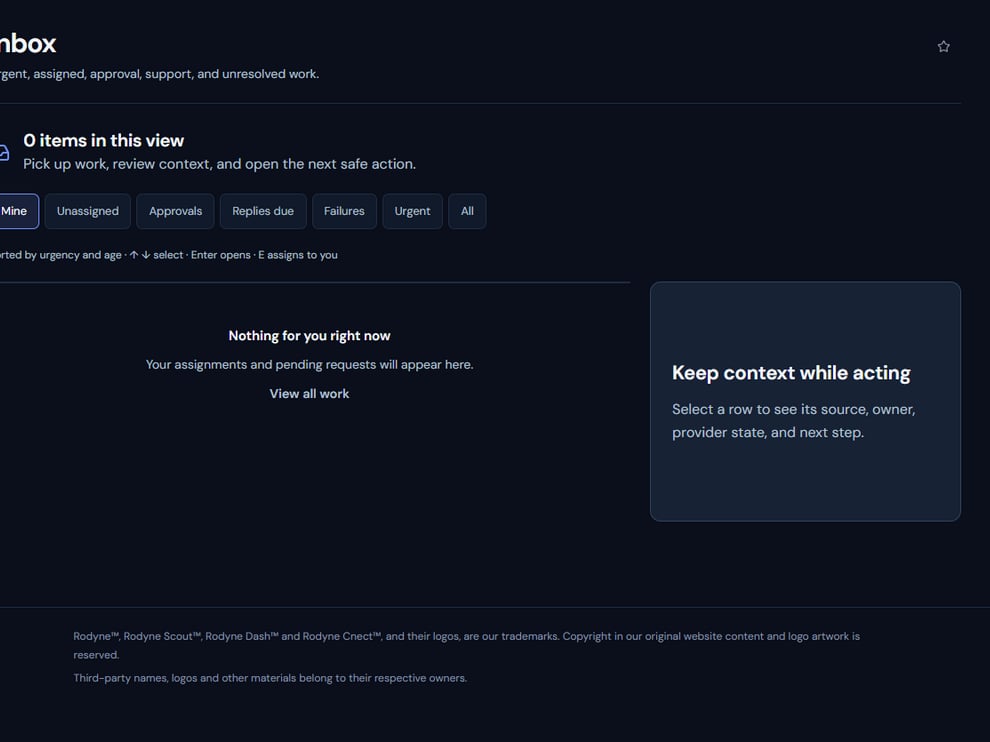
Community Management brings approvals, tickets, cases, and assigned work into one operating queue.
Operating procedure
1
Choose a mode
Use Bot Management for configuration and Community Management for day-to-day work.
2
Read the page heading
The heading and helper text identify the current workspace surface and its scope.
3
Apply queue filters
Narrow by status, assignment, priority, or type before treating the visible list as complete.
4
Open the source record
Badges and cards summarize; the detail page remains authoritative.
5
Return to Activity
Use Activity for asynchronous Discord, Roblox, and Studio outcomes.