
Start from a template
The Support hub template begins with User Support, User Report, Purchase Support, and Group Enquiries. Treat it as a starting structure: update the wording, category, roles, questions, limits, and priority for your server.Configure each ticket type
Each type can define:- Name, description, and button label.
- Button style and optional Unicode or server emoji.
- Up to three additional intake questions.
- A private Discord category.
- Support roles.
- Per-requester open-ticket limit.
- Default priority.
Server emojis
Choose Server emoji to use a static or animated emoji from the connected guild, or paste a Discord mention such as:Test and publish
1
Run preflight
Rodyne checks the panel channel, every type’s category and support roles, bot permissions, button limits, questions, and embed constraints.
2
Send a test
Deliver the draft through the test workflow and inspect the result in Activity. A test does not replace a requester privacy test.
3
Publish
Publishing creates a confirmed version. Discord buttons continue using the last confirmed version if a later draft or replacement fails.
4
Verify as a requester
Open a ticket using a separate account. Confirm the channel is private, the correct support roles can see it, questions are preserved, and replies flow both ways.
Version safety
Each opened ticket keeps the selected type’s configuration. Later edits or removal do not silently change its category, support roles, questions, or reopening limit. A form opened before a new panel version asks the requester to reopen it instead of attaching answers to the wrong schema.When publication is uncertain
Open Activity and the panel’s delivery detail. Verify the actual Discord message before retrying an ambiguous or expired write. Rodyne does not blindly repeat a possible Discord write because it could duplicate the panel.Guided walkthrough
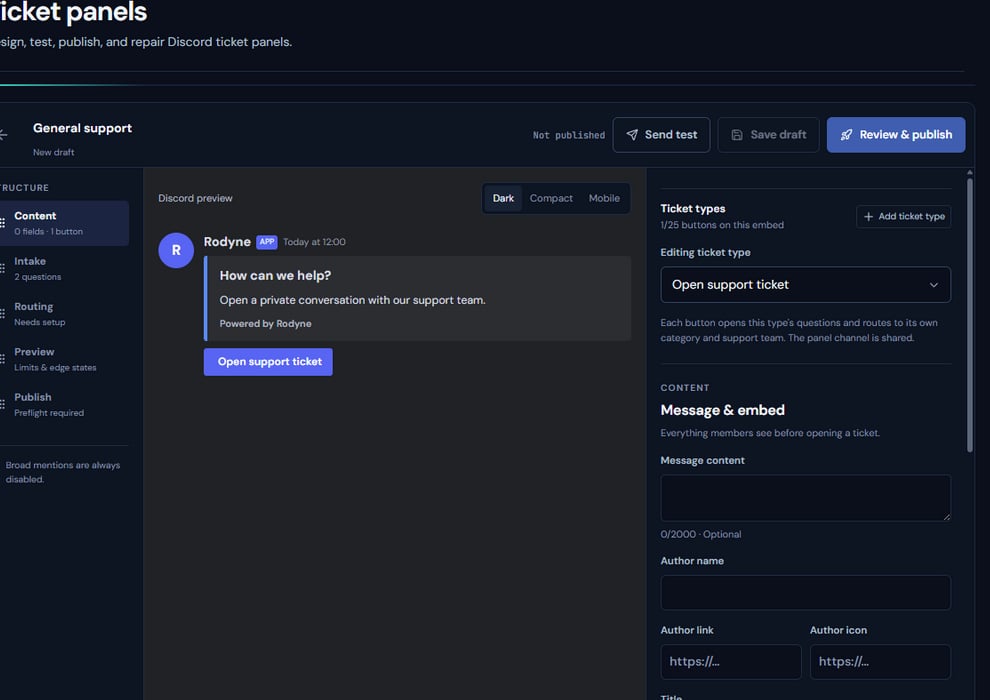
The real panel builder keeps the shared preview beside type-specific routing and intake fields.
Operating procedure
1
Choose a controlled channel
Use a staff test channel while the panel and bot permissions are still changing.
2
Define each type
Set its category, support roles, priority, requester limit, and intake questions.
3
Review the shared preview
Check copy, buttons, layout, emojis, and embed limits across all types.
4
Run preflight and test
Resolve every type’s errors and inspect the resulting Discord message.
5
Publish and privacy-test
Open a ticket as a separate requester and confirm all channel overwrites.