
Work the queue
Search and filter by status, requester, assignment, priority, and ticket type. Staff with the appropriate capability can:- Claim or assign a ticket.
- Change priority or waiting state.
- Reply from the dashboard or Discord.
- Add internal notes that remain in the staff application.
- Add or remove Discord participants.
- Link an existing report or create a new one.
- Close with a reason and reopen within the saved policy.
Conversation integrity
Discord gateway messages are stored as they arrive. A durable, paginated history sweep recovers messages missed during a worker restart. Later edit and delete events annotate captured messages.Attachment URLs can expire and are not copied into permanent evidence storage. History recovery cannot reconstruct a message that was deleted while Rodyne was offline.
Internal notes
Internal notes are only for staff with access to the ticket. They are clearly marked in staff transcript exports and are not sent into the requester-facing Discord conversation.Close and reopen
Closing prevents new ticket replies but keeps the Discord channel available for reading. Rodyne does not automatically delete the channel or transcript. Reopening restores the configured access and send behavior when policy allows it.Escalate to a report
Use a report/case when the conversation becomes an investigation, evidence review, appeal, or moderation decision. The ticket and report link to one another, while restricted report permissions remain enforced.Export a transcript
The staff export is a printable standalone HTML document. It escapes user-controlled text and blocks scripts. Internal notes are included and labelled, so review the destination before sharing the file.Failed Discord delivery
Inspect the ticket’s delivery records. For ambiguous failures, verify the actual channel or message before using repair or requeue. Repeating a possible Discord write can duplicate content or access changes.Guided walkthrough
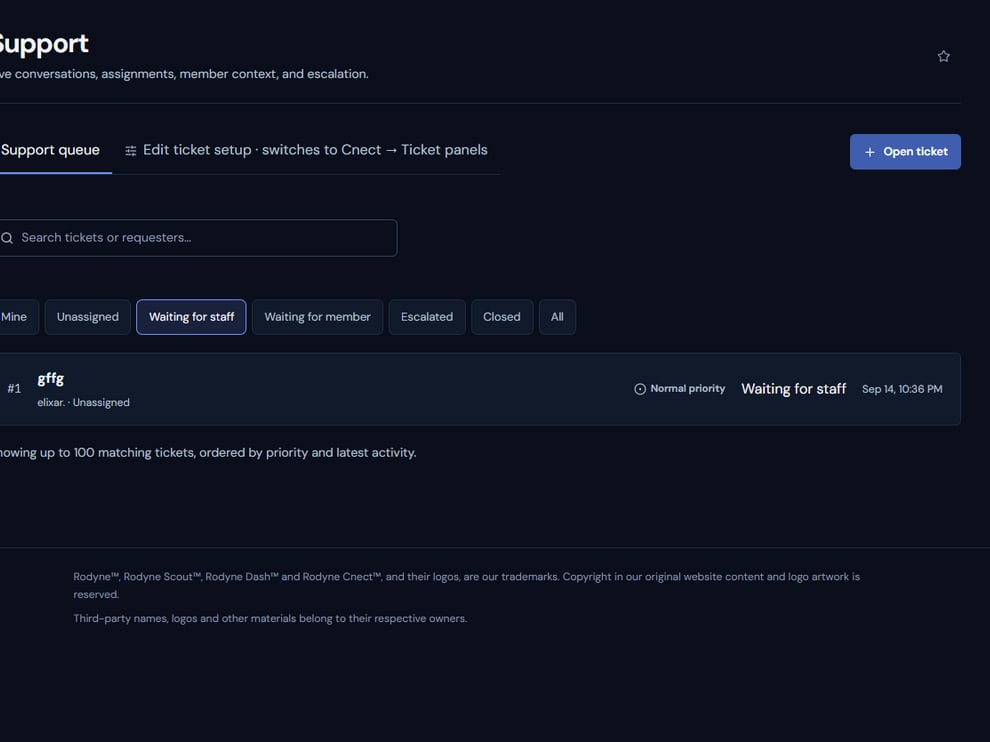
The Support queue exposes assignment, priority, status, and requester context without leaving the dashboard.
Operating procedure
1
Triage the queue
Filter new and unassigned tickets, then open the highest-priority record.
2
Claim before replying
Make ownership visible so two staff members do not work the same request.
3
Separate note and reply
Use internal notes for staff context and replies for requester-visible communication.
4
Escalate deliberately
Link a report or case when evidence, investigation, or moderation is required.
5
Close with context
Record the resolution and confirm the configured reopen behavior.