
Create an announcement
An announcement includes:- A title.
- Message content up to the configured platform limit.
- A destination channel from the connected guild.
- An optional scheduled delivery time.
- Up to five explicitly allowed role mentions.
Publish now or schedule
- Publish now
- Schedule
Review the channel and mentions, then confirm publication. Rodyne queues delivery and records the provider outcome.
Track delivery
Open the announcement or Bot Management → Activity. Do not treatQueued or Running as delivered. A confirmed provider response moves the job to Completed; failures and ambiguous results remain visible for review.
Safe retry practice
- Open the delivery detail.
- Check whether the message already exists in Discord.
- If the result is clearly failed and retry is offered, use the record’s repair action.
- If the outcome is uncertain, resolve it manually before retrying to avoid a duplicate broadcast.
Guided walkthrough
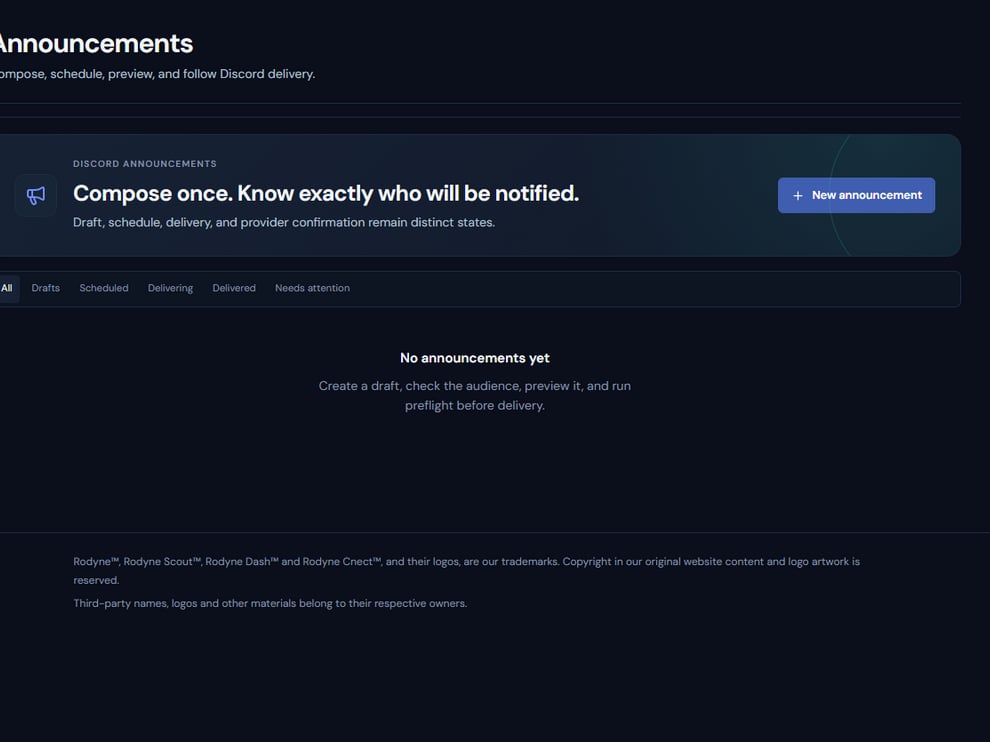
Announcements keeps drafts, schedules, destinations, and delivery state together.
Operating procedure
1
Choose the channel
Confirm the channel purpose and bot send permissions before composing.
2
Write for the destination
Keep the key action and timing visible without relying on mentions.
3
Limit mentions
Select only the reviewed roles and inspect the rendered preview.
4
Schedule with timezone context
Confirm the stored execution time and who will monitor delivery.
5
Verify the live message
Follow the job to completion and inspect the actual Discord post.