
Required bot configuration
Enable these privileged intents in the Discord Developer Portal:- Server Members Intent for live member, role, and guild-membership checks.
- Message Content Intent when using ticket conversation capture and history recovery.
Recommended guild permissions
Grant only where needed:- View Channels
- Send Messages
- Embed Links
- Attach Files
- Read Message History
- Manage Channels
- Manage Roles
- The relevant native moderation permissions if ban, kick, or timeout workflows are enabled
Role hierarchy
Move the Rodyne bot role above:- Mapped member roles it must add or remove.
- Support roles it must add to private ticket channels.
- Members it must moderate.
Connect and scan
1
Bind the guild
During activation, choose the managed guild and use the generated bot invitation. The selected server is locked into that setup attempt.
2
Run the permission scan
Open Bot Management → Integrations → Discord and refresh the role/permission catalog. Resolve missing or blocked capabilities.
3
Review managed roles
Use the scanned catalog when creating mappings, staff role rules, and ticket types. Refresh again after significant Discord role changes.
4
Verify registration
Open Bot Management → Commands and Activity. Built-in and enabled custom commands reconcile to the guild automatically.
Command troubleshooting
Verify with a test account
Use a separate non-staff Discord account to confirm:- Public help and verification commands are available.
- Verification opens the expected Cnect flow.
- Only eligible mapped roles are changed.
- A ticket channel is private from unrelated members.
- Closing and reopening enforce the expected send/access behavior.
Guided walkthrough
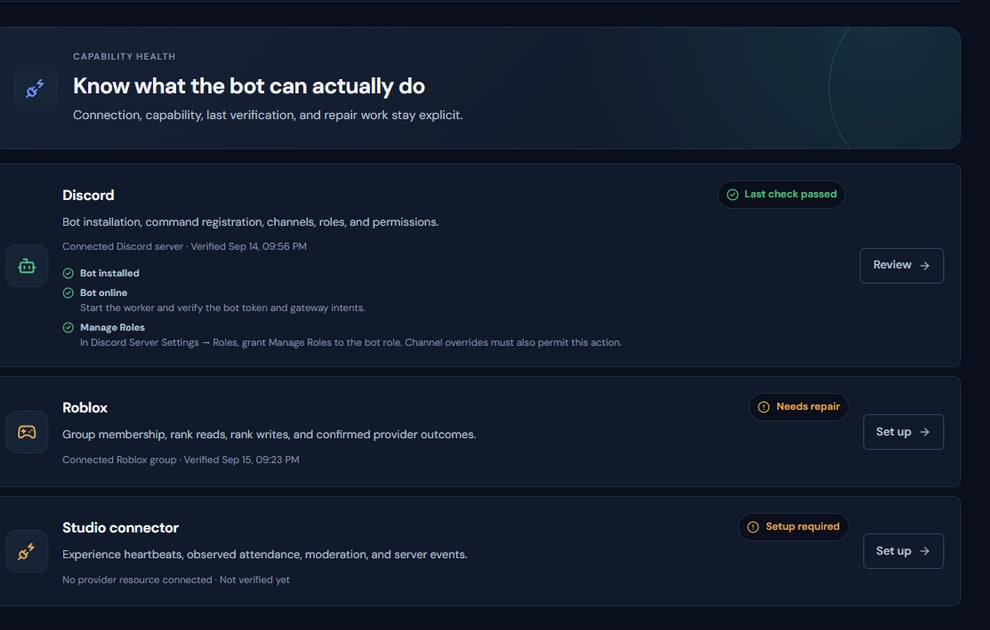
Discord capability health is visible before commands, panels, or role automation go live.
Operating procedure
1
Verify the guild
Match the connected guild ID with the server where the bot was invited.
2
Enable intents
Enable Server Members and, when ticket capture is used, Message Content in the bot application.
3
Place the bot role
Move it above every managed role and member it must moderate.
4
Refresh capability data
Run the Rodyne scan after changing Discord permissions or hierarchy.
5
Exercise real paths
Test a command, a private ticket, and role reconciliation from separate member accounts.