
Mapping model
Each mapping joins:- A Roblox Group ID.
- A real Roblox Rank ID.
- A Discord role ID.
- A display name.
- A unique numeric order.
- A required approval count from 1 to 5.
- An optional protected flag.
Create the ladder
1
Choose a group
Prefer a managed Cnect group when available, or add an external Roblox group. The primary group powers rank requests; secondary groups are role-sync only.
2
Select the real rank
Choose the rank returned by Roblox. For a legacy mapping, explicitly confirm its Group ID and Rank ID rather than inferring from its label.
3
Map the Discord role
Choose a role from the latest Discord scan or enter its ID. The live hierarchy is checked again during execution.
4
Set order and approvals
Give every mapping a unique order. Set the number of distinct approvers required to enter that target rank.
5
Protect sensitive ranks
Protected ranks cannot be requested as targets. Their Discord roles are never automatically added or removed.
Verification behavior
/link, /verify, and /update read membership across all bound groups and combine the matching Discord roles.
- Matching unprotected roles are added.
- Unmatched unprotected managed roles are removed.
- Unrelated and protected roles are preserved.
- If several mappings share a Discord role and any mapping is protected, that role is untouched.
- If a group membership lookup fails, no managed roles change.
Rank behavior
/rank setrequests an eligible target in the primary group./promoteand/demotechoose the immediately adjacent mapping.- An adjacent protected rank stops the request; Rodyne does not skip over it.
- Duplicate order values block adjacent-rank commands until corrected.
- The requester cannot approve their own request.
Editing safely
Rodyne uses optimistic checks so one manager does not overwrite another manager’s newer change. If a mapping changed after you opened it, close the editor, refresh, and apply your change again. Mappings with active rank work may be locked:- Waiting, unexpired requests block removal.
- Queued or running changes block rule edits and removal.
- Reordering does not change the mapping IDs stored on existing requests.
Guided walkthrough
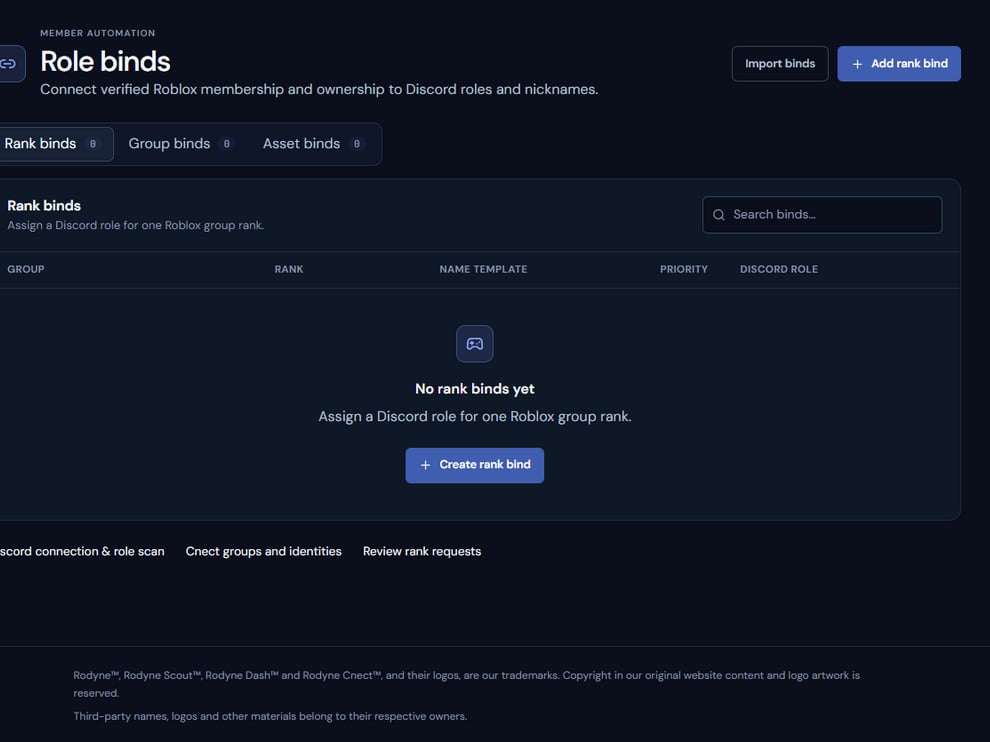
Automations shows the mapping ladder that drives verification and approved rank work.
Operating procedure
1
Refresh providers
Load the current Roblox ranks and Discord roles before building mappings.
2
Create the ladder
Add each real rank ID once and assign a unique order.
3
Mark boundaries
Protect owner and sensitive staff ranks and require suitable approval counts.
4
Preview adjacency
Check what promote and demote would select at every ladder edge.
5
Canary verification
Use a controlled member to confirm additions, removals, and protected-role preservation.